Sync and Import
The Sync and Import feature allows you to synchronize your discourse nodes with the Discourse Graph database and share them with collaborators. Once enabled, you can publish nodes to a shared group space and import nodes published by others.
To share your node types, relation types, and templates instead of your nodes, see Import and export schema.
Note: This feature is currently in beta. The sync functionality requires an active connection to the Discourse Graph database.
Warning: When using sync and import:
- Don’t edit the things you imported
- Don’t click to create new files (from imported nodes)
- Don’t delete imported node types
Enabling sync mode
Step 1: Open settings
Open the Discourse Graph plugin settings:
- Open Obsidian settings (click the gear icon in the bottom-left corner, or press
Cmd/Ctrl + ,) - Scroll down in the left sidebar to community plugins
- Find Discourse Graph
Step 2: Reveal the admin panel
The sync feature is located in a hidden admin panel tab that is not visible by default.
- While on the Discourse Graph settings page, press
Cmd + Shift + A(Mac) orCtrl + Shift + A(Windows/Linux) - A new admin panel tab will appear in the settings tab bar
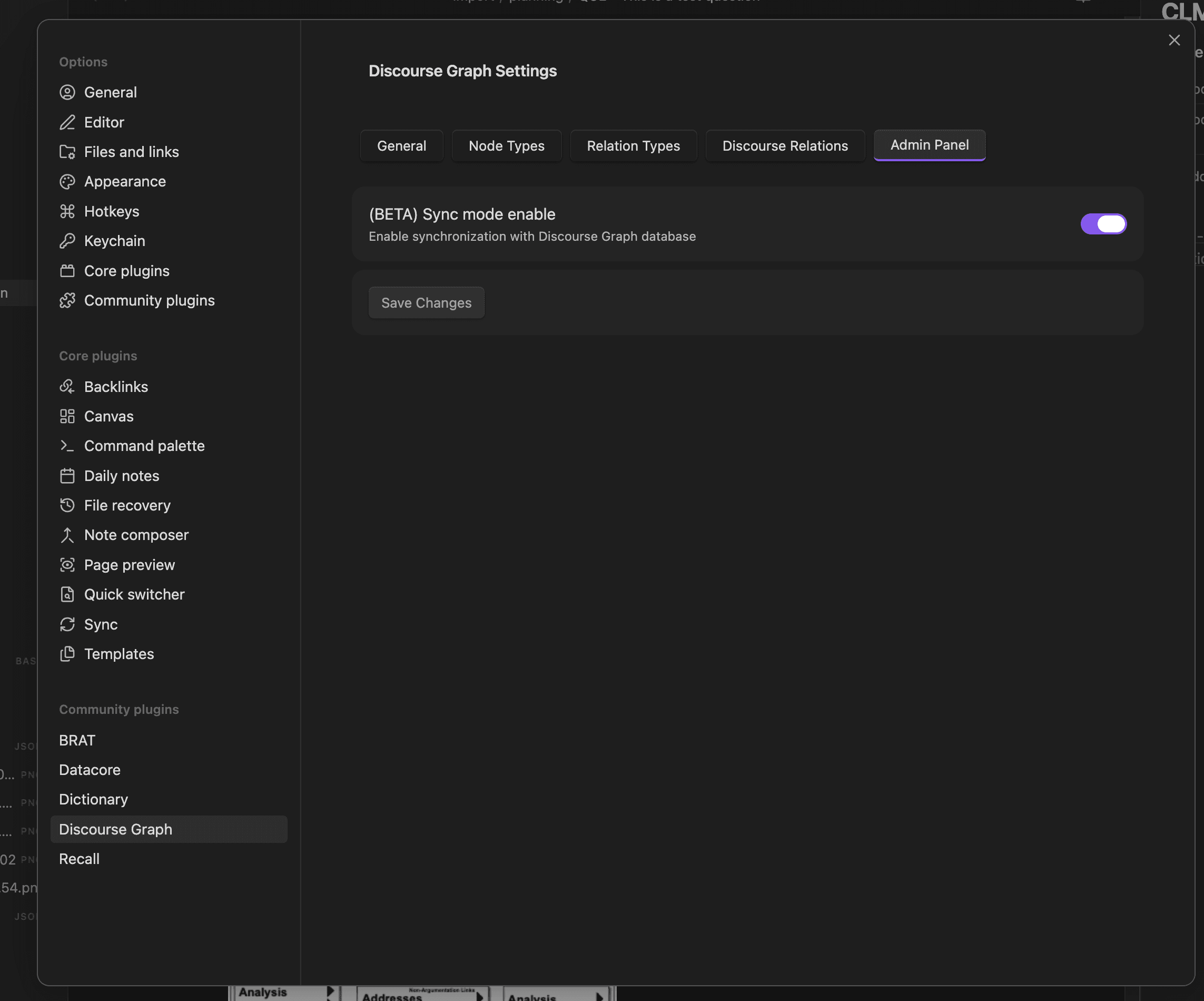
Step 3: Enable sync mode
- In the admin panel tab, find the (BETA) Sync mode enable toggle
- Click the toggle to enable sync mode
- Click Save changes
- A confirmation notice will appear: “Admin panel settings saved”
- The sync mode will initialize automatically, and you will see a notice: “Sync mode initialized successfully”
Once enabled, your discourse nodes will begin syncing automatically to the Discourse Graph database. The plugin monitors file changes in your vault (with a short delay) and syncs them in the background.
Publishing a discourse node
Publishing makes a synced discourse node available to other members of your group. This is how you share your work with collaborators.
Prerequisites
Before publishing, make sure:
- Sync mode is enabled (see above)
- You are a member of a group. Group membership is managed by your team administrator. The Discourse Graph team will ensure you are added to the appropriate group before you can publish.
- The discourse node you want to publish has a
nodeTypeIdin its frontmatter - The discourse node has been synced at least once (it must have a
nodeInstanceIdin its frontmatter — this is assigned automatically after the first sync)
Steps to publish
-
Open the discourse node you want to publish in the editor
-
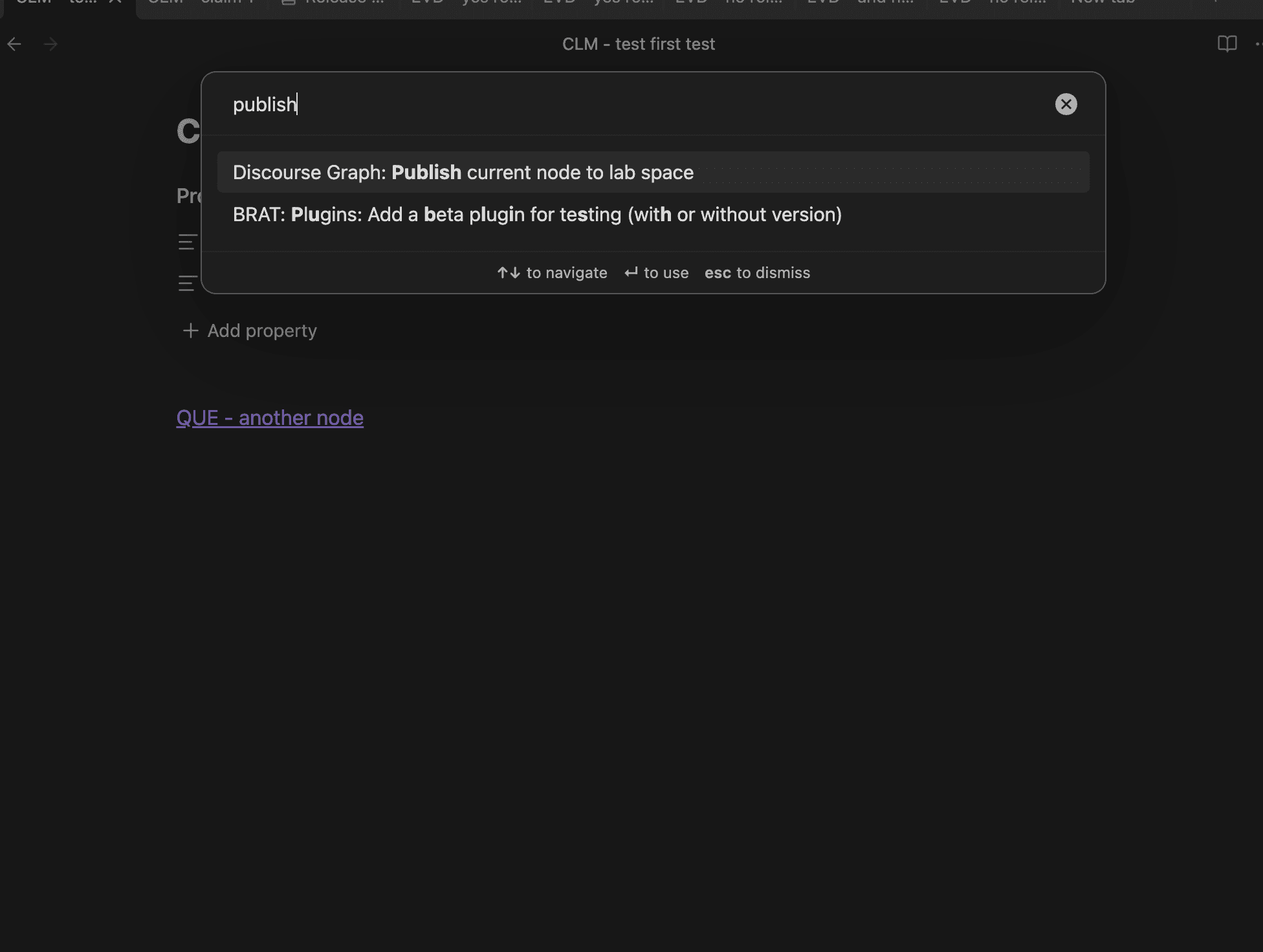
Open the command palette by pressing
Cmd/Ctrl + P -
Search for the publish command by typing “Publish” and select “Discourse Graph: Publish current node to lab space”
-
The plugin will:
- Publish the node to your group
- Automatically publish any relations connected to this node where the other endpoint has already been published to the same group
- Sync any embedded assets (images, attachments) to the shared storage
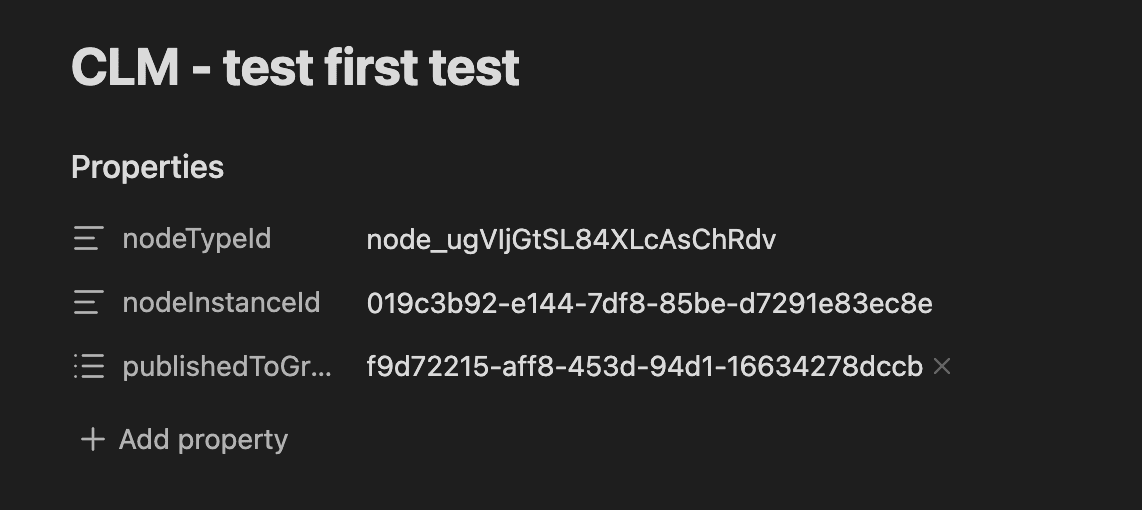
- Update the node’s frontmatter with a
publishedToGroupsfield
-
A confirmation notice will appear: “Published”
Note on publishing relations: Relations between nodes are published automatically — you do not need to publish them separately. When you publish a node, the plugin checks all its relations and publishes any where:
- Both the source and destination nodes are published to the same group, and
- The relation type is defined in your discourse relation settings
Importing discourse nodes from another space
Importing allows you to bring published discourse nodes from other group members into your vault.
Steps to import
-
Open the command palette by pressing
Cmd/Ctrl + P -
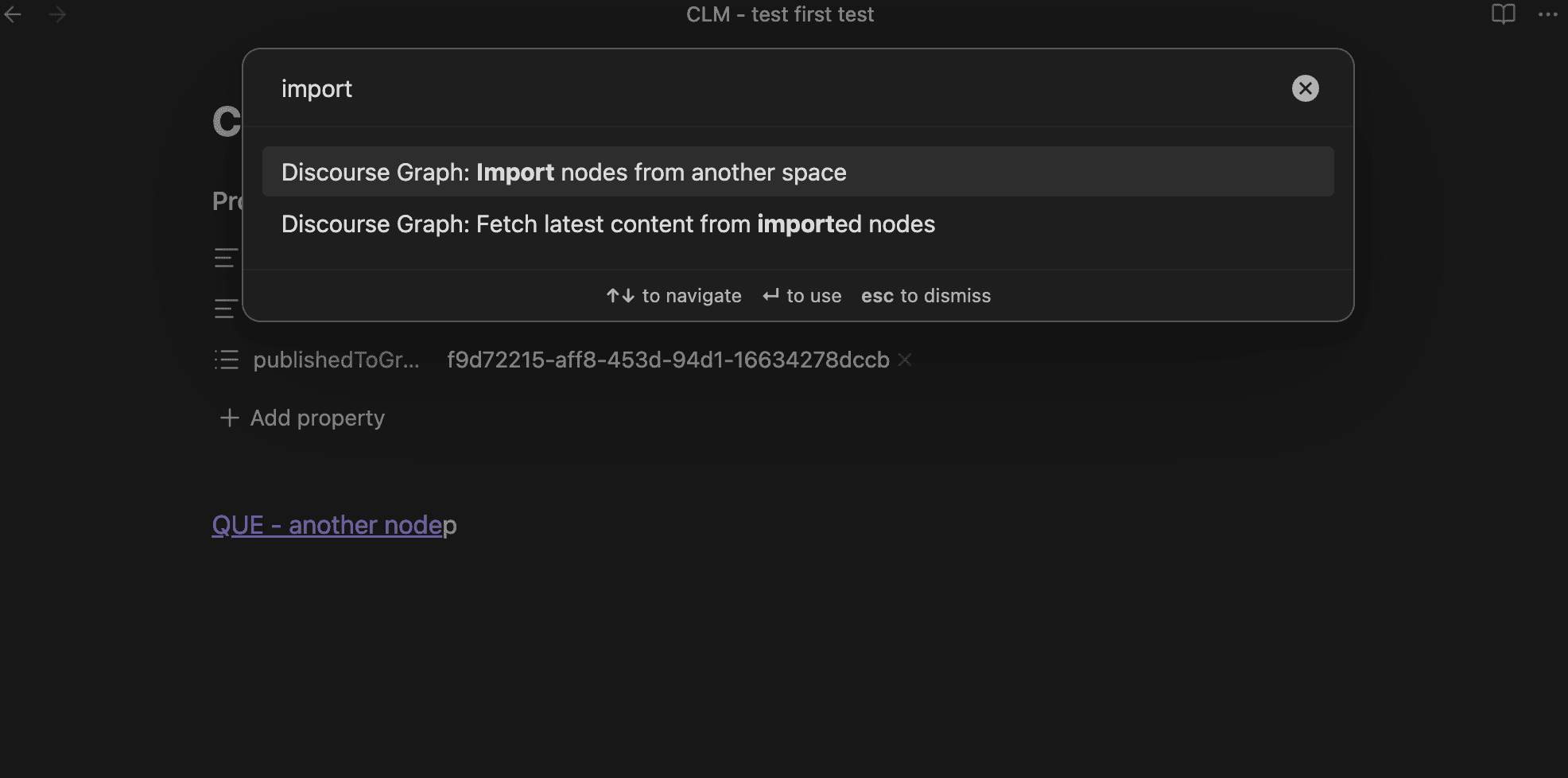
Search for the import command by typing “Import” and select “Discourse Graph: Import nodes from another space”
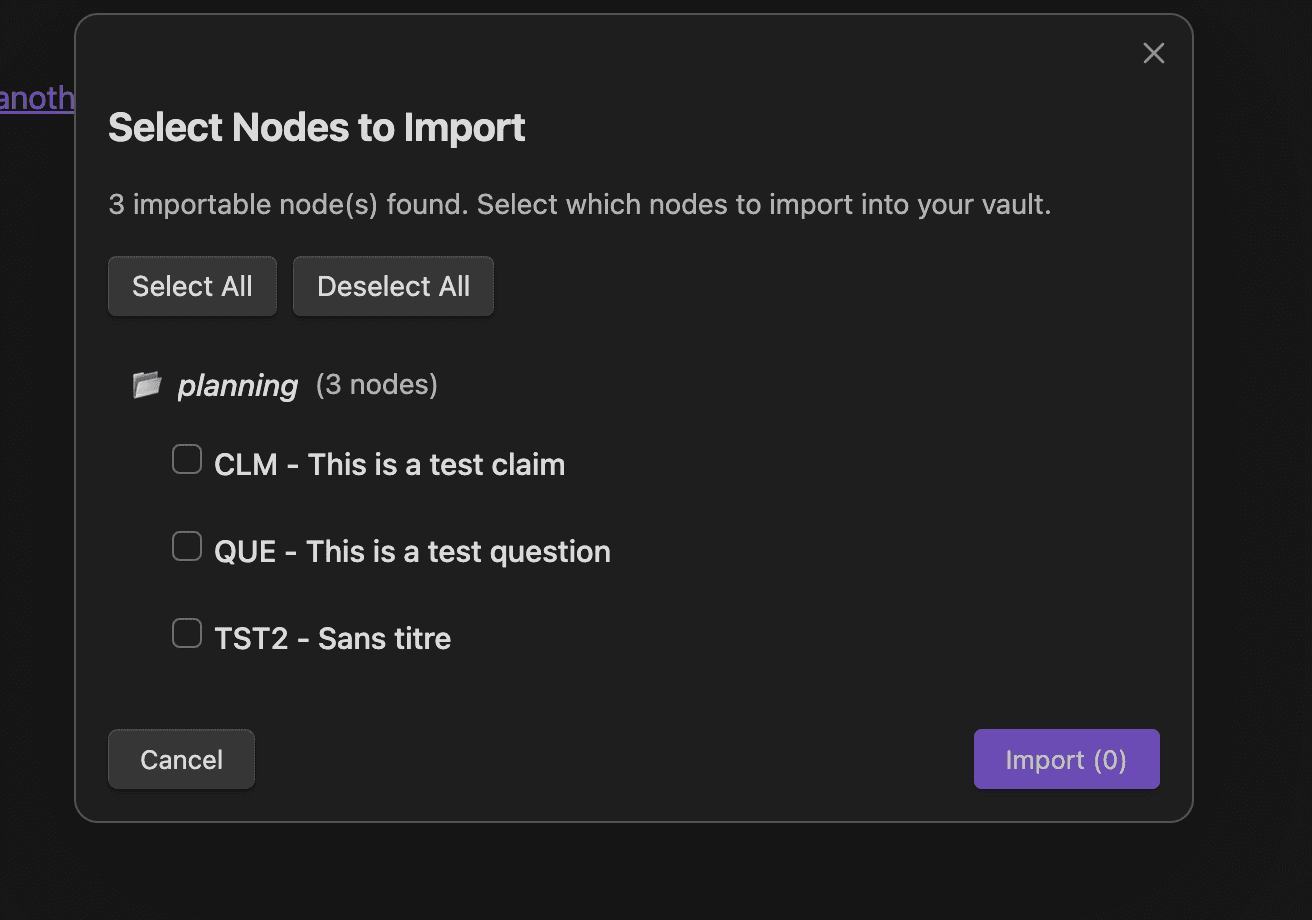
- The import nodes modal will open and begin loading available nodes from your groups. Once loaded, you will see a list of importable nodes grouped by space. Each space section shows the space name and available nodes.
-
Before importing, the modal shows an import preview summarizing everything that will be created:
- Number of nodes and relations to be imported
- Any new node types that will be added to your vault
- Any new relation types that will be added
- Any new discourse relation triplets (source → relation → destination) that will be established
-
The plugin will import each selected node and their associated relations, then display a progress bar. Once complete, you will see a confirmation notice.
Imported nodes are saved in an import/{spaceName}/ folder in your vault, preserving the original space organization.
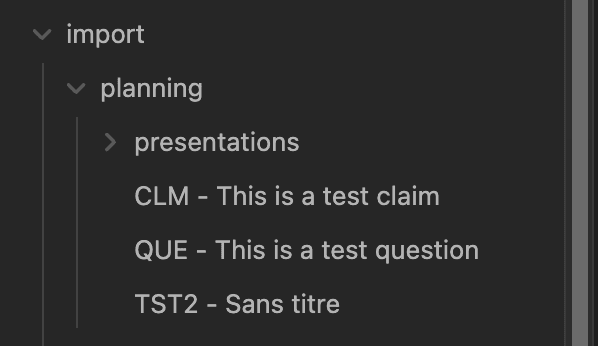
Note: Relations are only imported when both the source and destination nodes are present in your local vault (either as previously imported nodes or nodes you already have locally). Relations whose endpoints are missing will be skipped.
Refreshing imported nodes
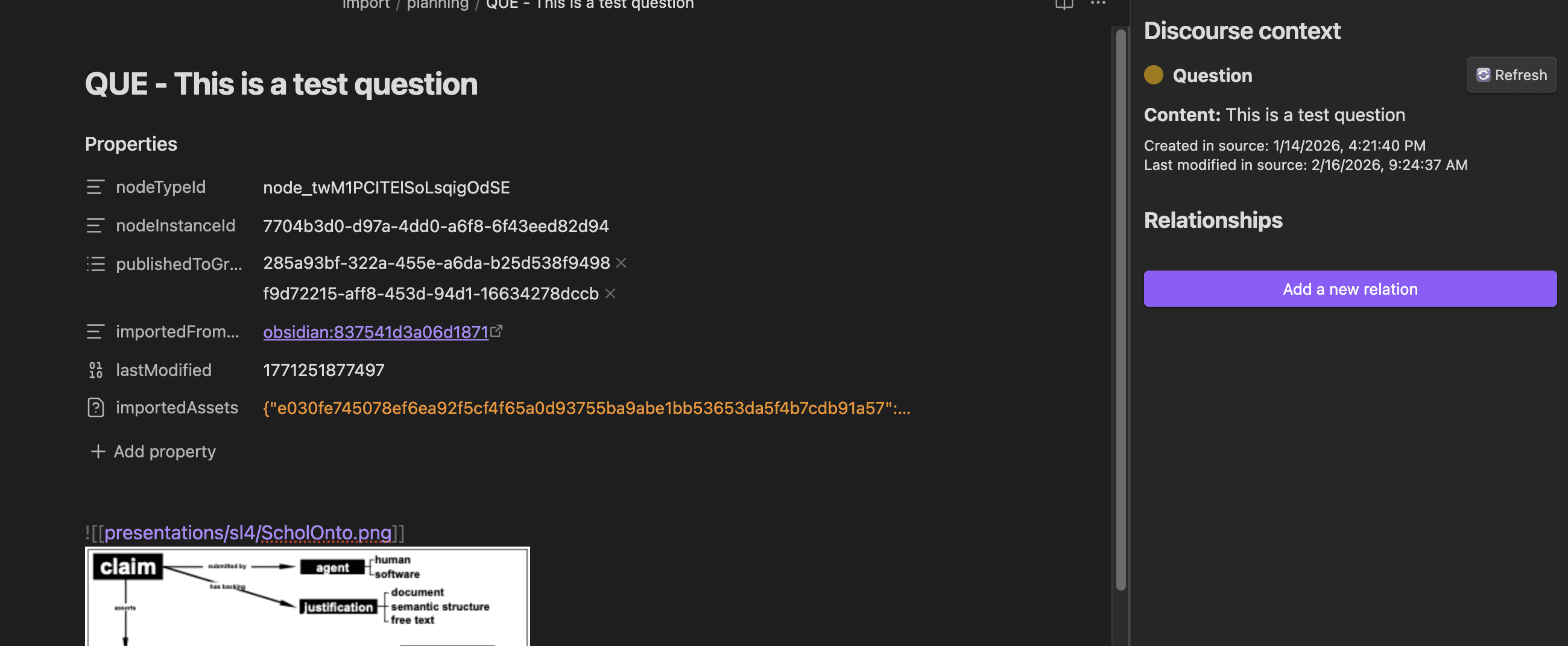
After importing, you can fetch the latest content from the original sources to keep your imported nodes up to date.
- Open the command palette by pressing
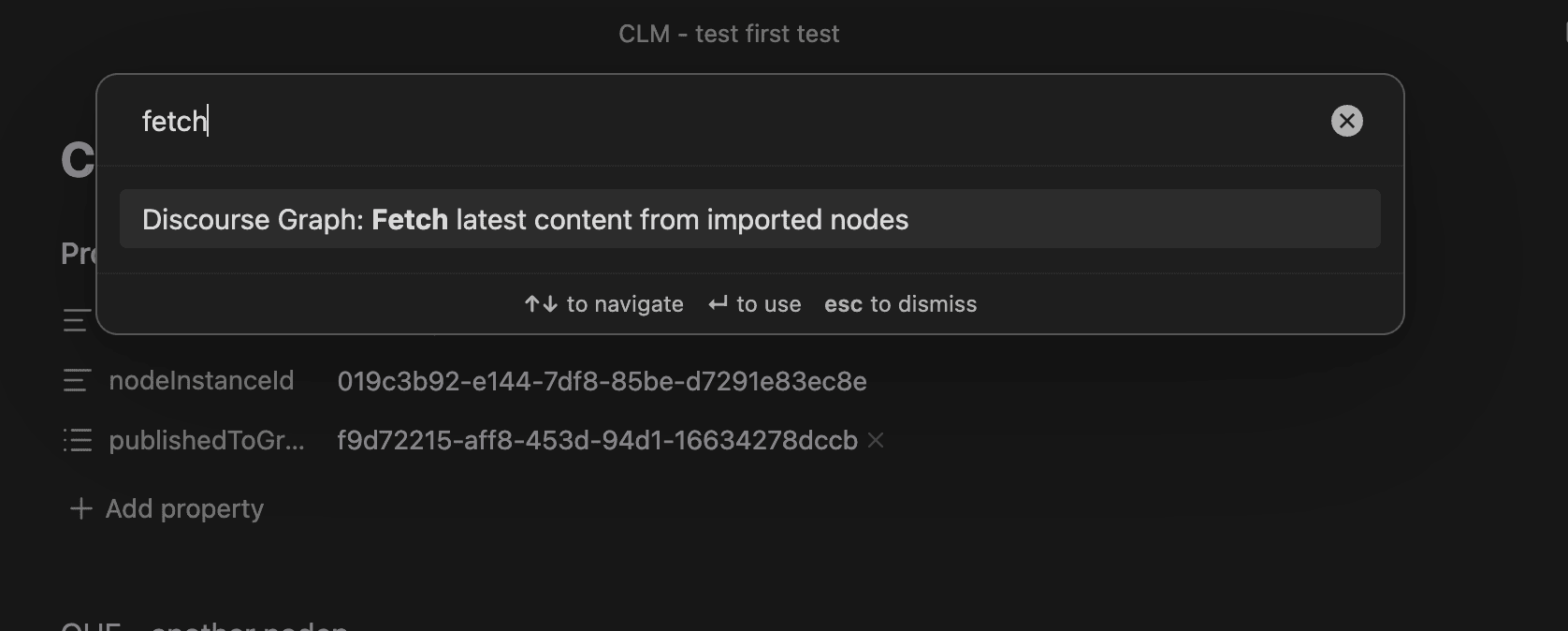
Cmd/Ctrl + P - Search for “Fetch” and select “Discourse Graph: Fetch latest content from imported nodes”
- The plugin will check each imported node for updates and refresh any that have changed
Alternatively, you can click the “Refresh” button in the Discourse Context panel.
Summary of commands
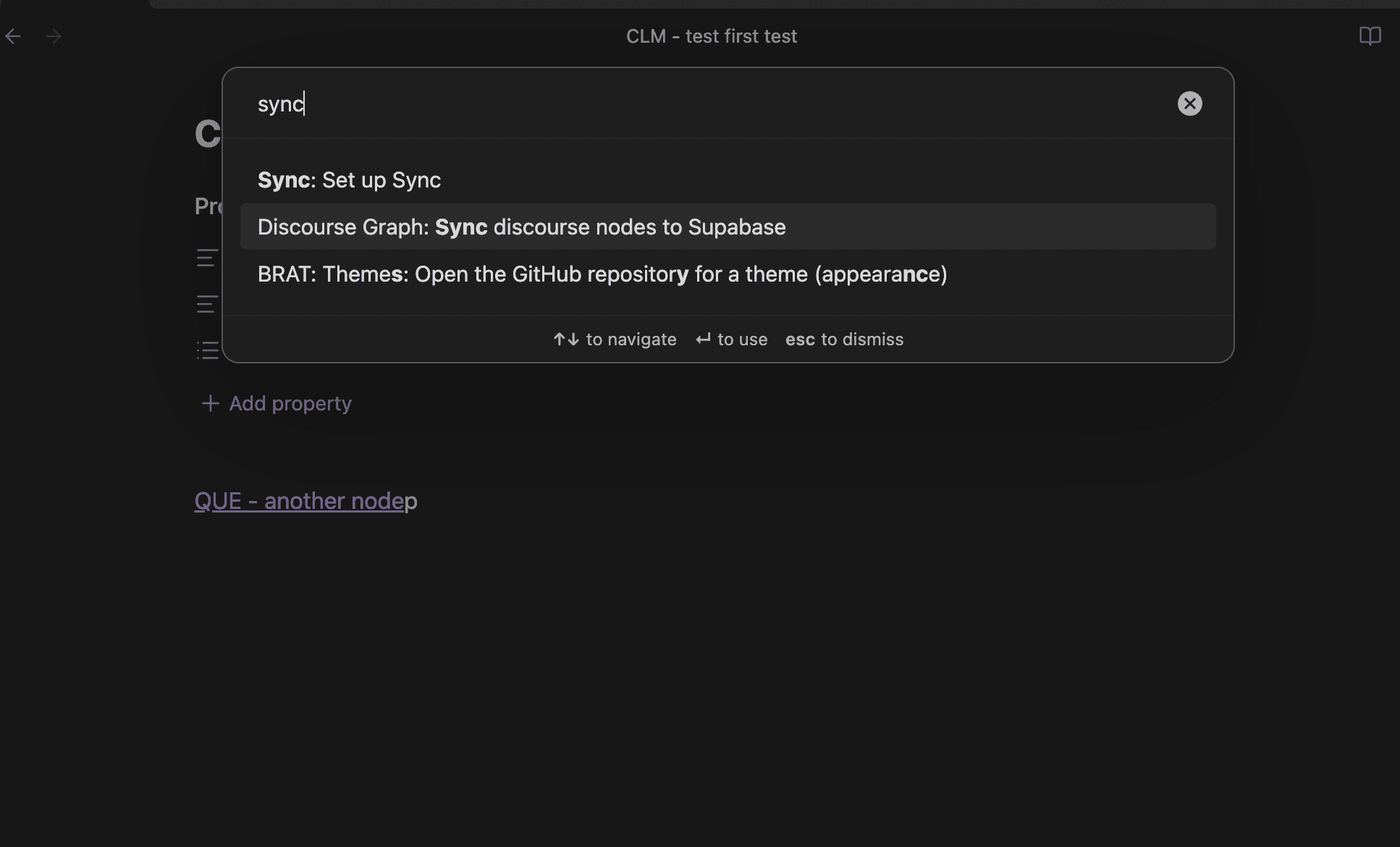
- Sync discourse nodes to Supabase: Manually sync all discourse nodes to the database
- Publish current node to lab space: Publish the active discourse node to your group, including any relations whose other endpoint is already published to the same group
- Import nodes from another space: Open the import modal to browse and import shared nodes along with their relations
- Fetch latest content from imported nodes: Refresh all imported nodes with the latest content
Troubleshooting
- “Sync mode is not enabled” — You need to enable sync mode in the admin panel first (see Enabling sync mode above)
- “Please sync the node first” — The node hasn’t been synced yet. Wait for automatic sync or trigger a manual sync via the command palette using “Discourse Graph: Sync discourse nodes to Supabase”.
- “You are not a member of any groups” — You need to be added to a group before you can import nodes. Contact your team administrator
- No importable nodes found — Either no nodes have been published to your groups, or you have already imported all available nodes
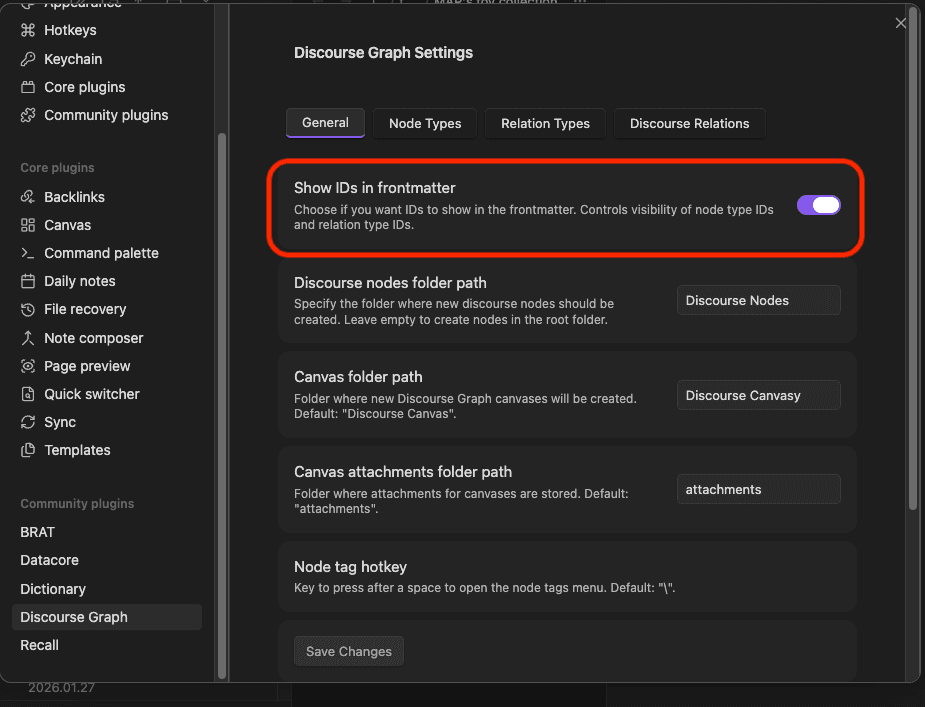
- The frontmatter fields related to sync are normally hidden. You can choose to display them in the setting panel