Using the left sidebar
The left sidebar is a navigation tool that allows you to select your most commonly-used nodes as entry points to your Discourse Graph.
The default left sidebar that ships with the Roam Research app can be used to surface items in a shared graph to everyone’s attention or to promulgate a group workflow.
The Discourse Graph extension allows users of a shared graph to supplement these global shortcuts with personal shortcuts visible only to that user, including pages, blocks, SmartBlock buttons, and live queries.
Installing the left sidebar
- Open the Discourse Graph plugin settings and go to
Global Settings. - Select
Homeand checkLeft Sidebar.
Note that this is a global setting and activating it will enable it for all users in the graph. If it is already checked ☑️, someone in your graph has already enabled the plugin.
N.B. Enabling the sidebar requires a graph reload to take effect. A prompt will appear offering to Reload Graph now or Later.
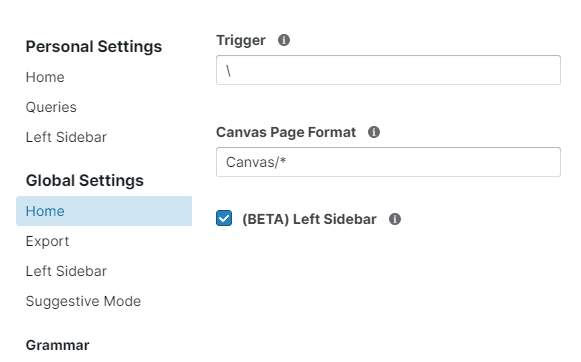 Enabling the left sidebar
When you first enable the feature, your existing Roam shortcuts are automatically migrated into the Global section — you won’t lose anything.
Additions to the basic Roam sidebar
The standard left sidebar that ships with the Roam app has a space for shortcuts. However, these cannot be personalized for individual users of a shared graph.
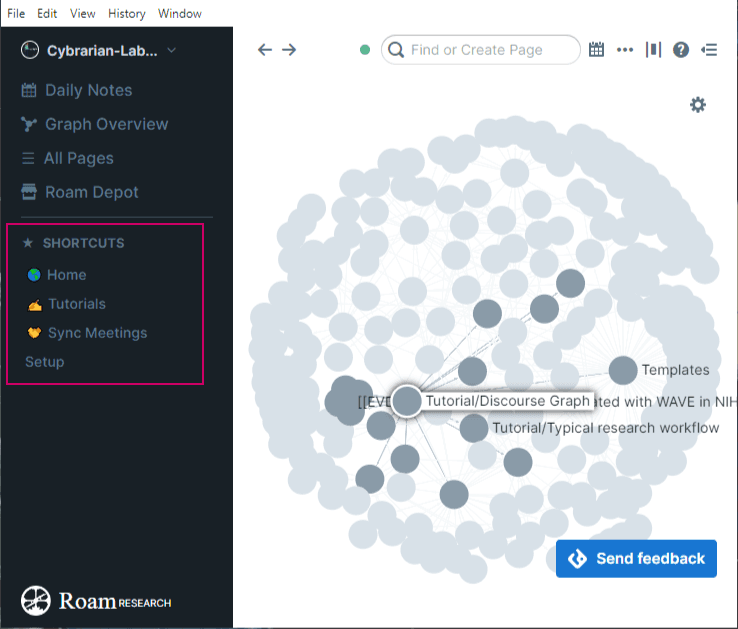 The standard Roam left sidebar
The Discourse Graph left sidebar allows users to set both Global and Personal shortcuts for team and individual use. Choose shortcuts for your team under Global Settings → Left Sidebar, and choose personal shortcuts visible only to you under Personal Settings → Left Sidebar.
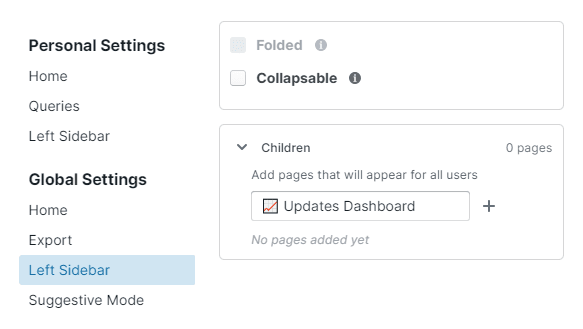 Setting left sidebar shortcuts visible to everyone in a shared graph
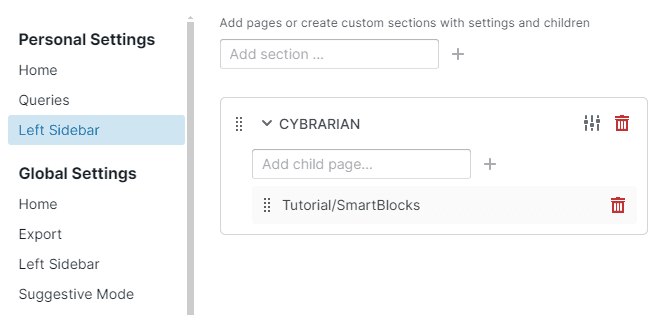 Creating left sidebar shortcuts visible only to yourself
Opening the left sidebar settings
Click the Settings to the right of the FAVORITES heading. A small menu will appear with two options:
- Global Section — edit shortcuts visible to everyone in the graph.
- Personal Section — edit shortcuts visible only to you.
You can also reach these under Global Settings → Left Sidebar and Personal Settings → Left Sidebar.
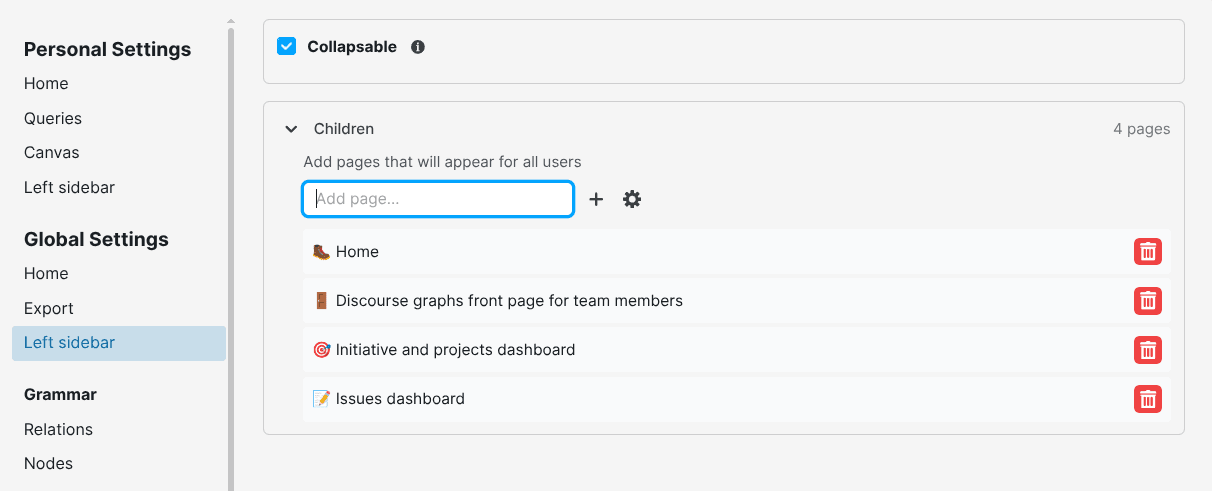 Adding Global shortcuts
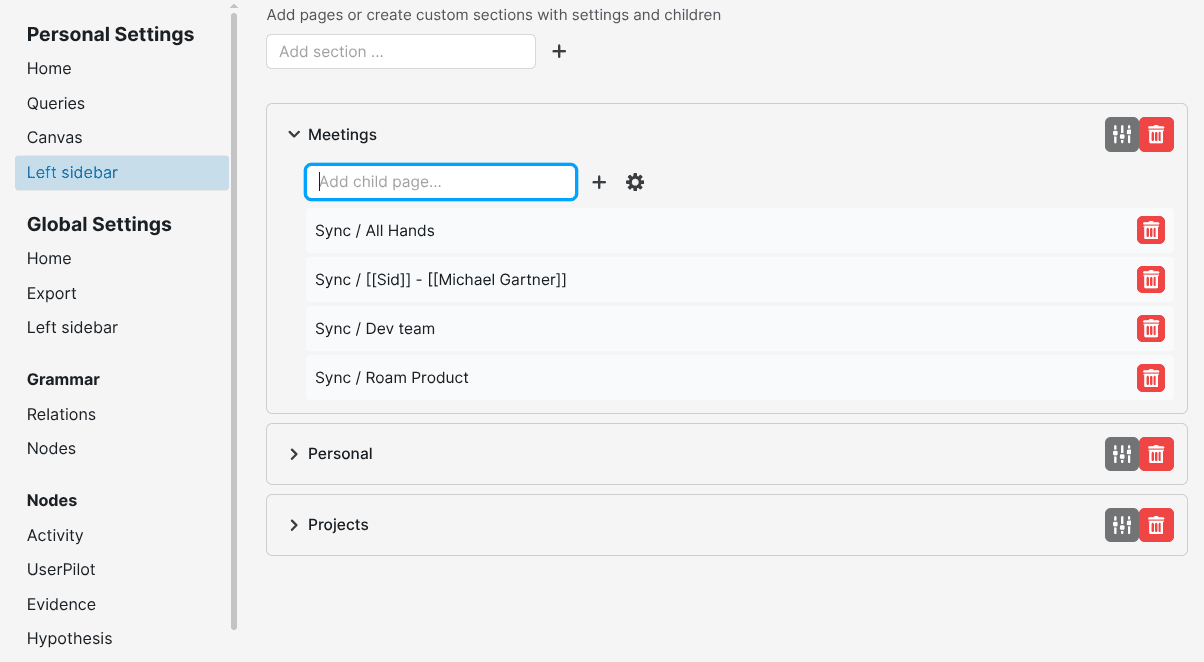 Adding Personal shortcuts
If your new shortcuts do not immediately appear on the left sidebar, please refresh the Discourse Graph plugin as shown below.
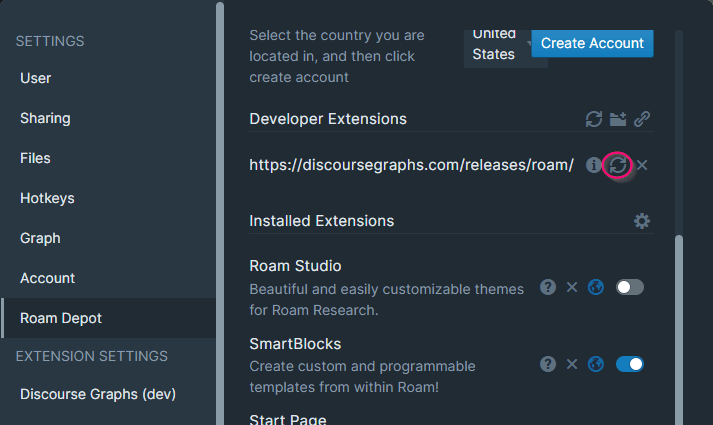 Refreshing the plugin
Sidebar features
The global section
Add pages (or blocks, commands, and queries — see below) under Global Settings → Left Sidebar → Children. Anything here is visible to all users of the graph, so add with care.
Folding is now personal. Click the chevron next to GLOBAL to collapse it — this only affects your view, not other users’. This lets you tuck away team shortcuts you don’t use often without hiding them for everyone.
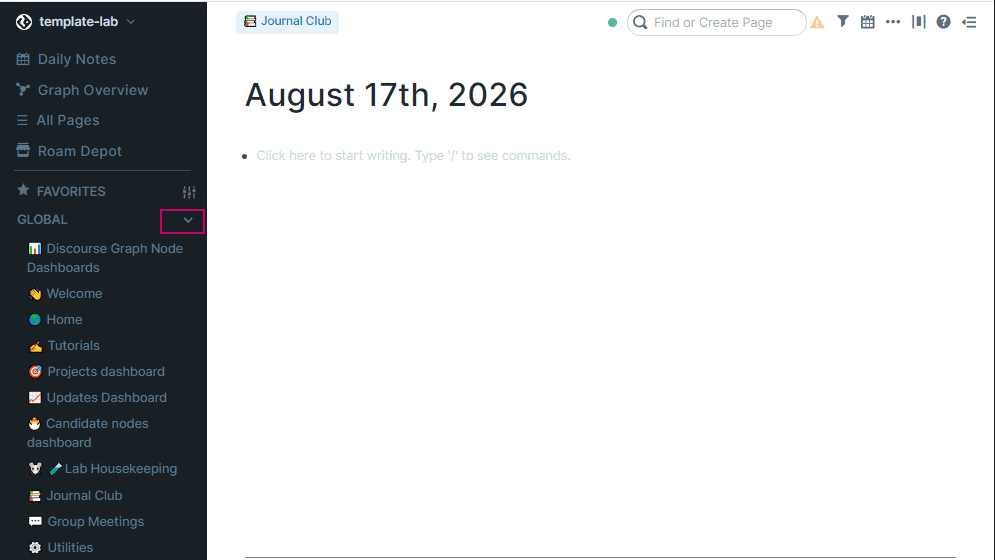 Hiding unused shortcuts
Personal sections
-
Open
Personal Settings → Left Sidebar(or the Settings icon → Personal Section). Use the “Add section …” box to add items. -
Click the ➕ (Add children) icon on that item to convert it into a named section that groups several child pages under one collapsible heading. Sections with children get a chevron to expand/collapse. You can add children to a section with the “Add child page…” box and remove them with the trash icon.
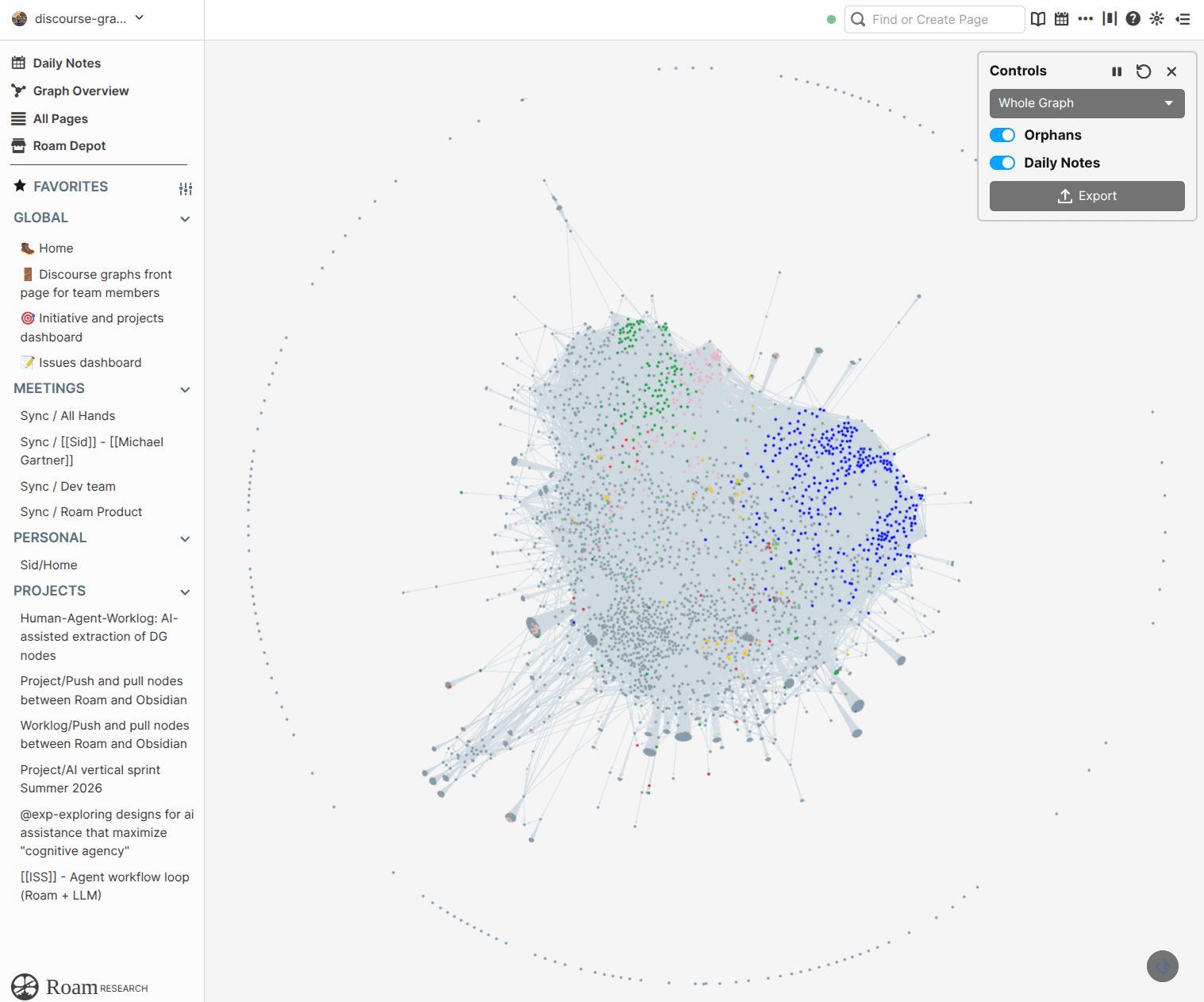 This is an example of a personalized left sidebar: FAVORITES with a GLOBAL section for all users of the shared graph — here an Updates Dashboard and a focal project — and beneath it are a few personal sections, e.g., one of them called “MEETINGS”. Users can create multiple named personal shortcut sections.
Query sections
You can pin a query to have its live results show up as shortcuts in the sidebar.
In Personal Settings → Left Sidebar, paste a block reference ((block-uid)) pointing to a block that contains a {{query block}} into the “Add section …” box. That query will be added to your left sidebar, and the query results will be rendered as children of the query.
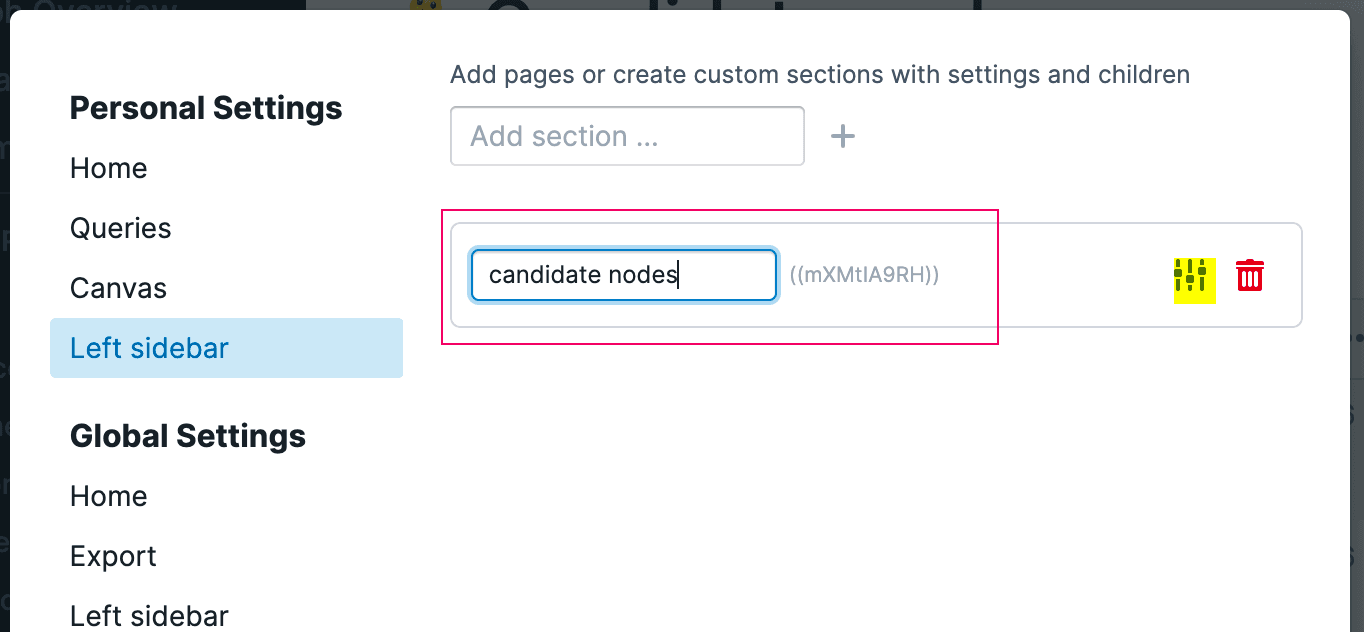 adding a query block to the left sidebar
You can use the Settings menu (highlighted in yellow above) to add an Alias (display title) for the query section, limit the number of results to display, and truncate the number of characters to display for each character result.
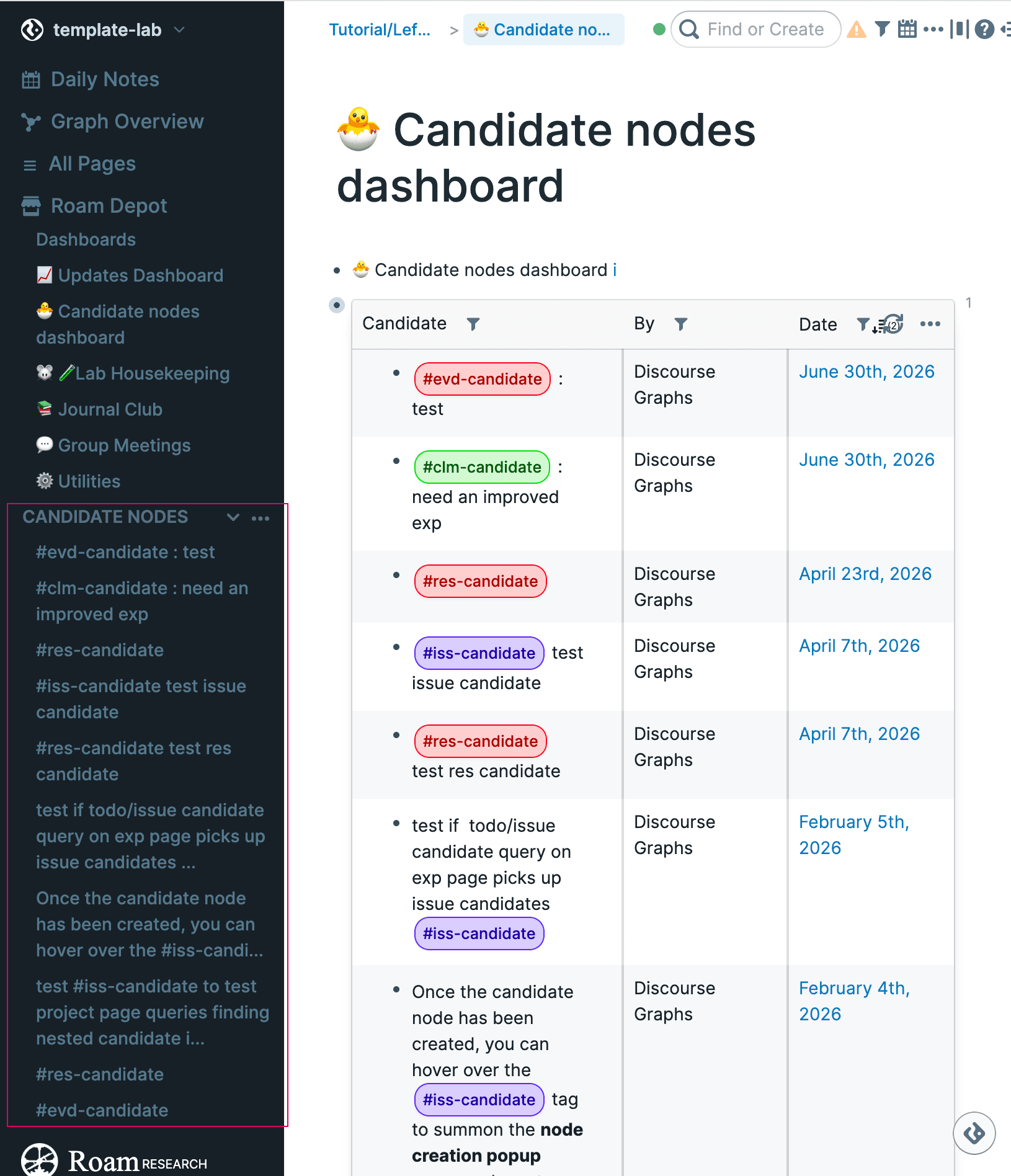 Viewing query results in the sidebar
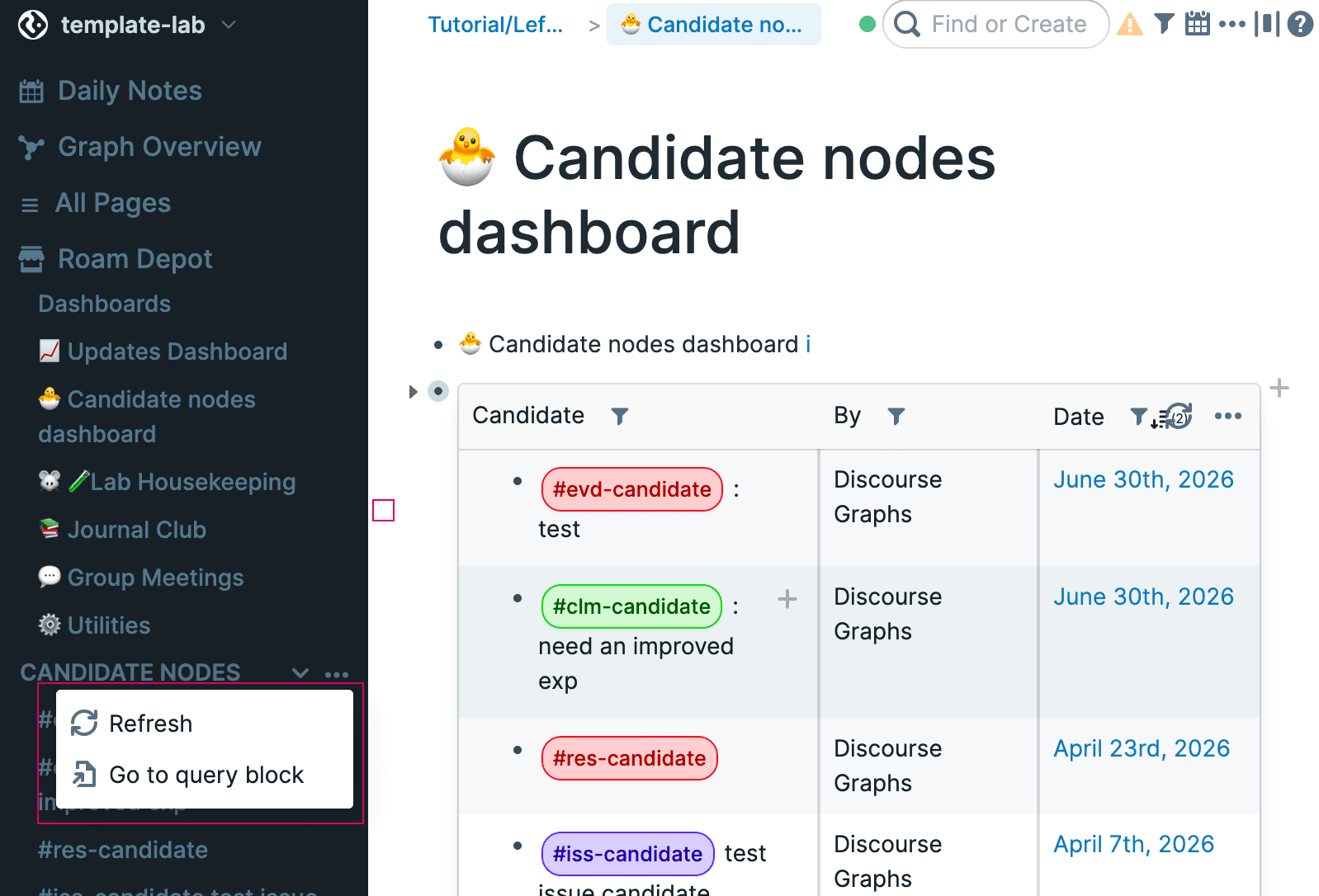 You can use the three-dot menu to re-run the query or navigate to the query block in your graph
Adding blocks, SmartBlocks, & commands
Blocks, SmartBlocks, and Commands can be added to your sidebar as child blocks of sidebar shortcuts.
Blocks
Add a block reference ((block-uid)) as the child of a shortcut; clicking it opens that block.
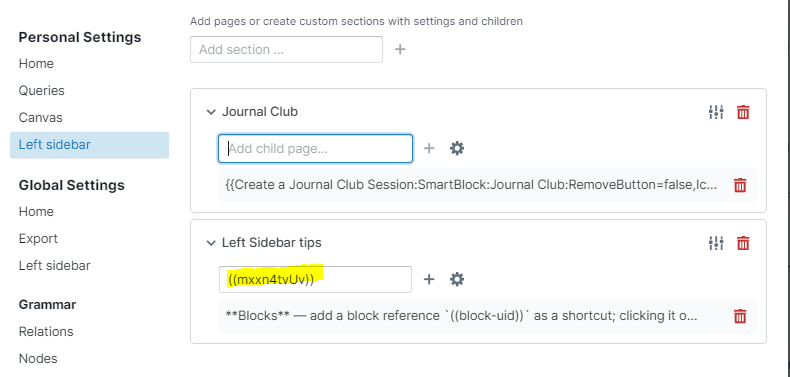 Here we’ve added a shortcut called “Left Sidebar Tips”. The block is then added as a child of that shortcut
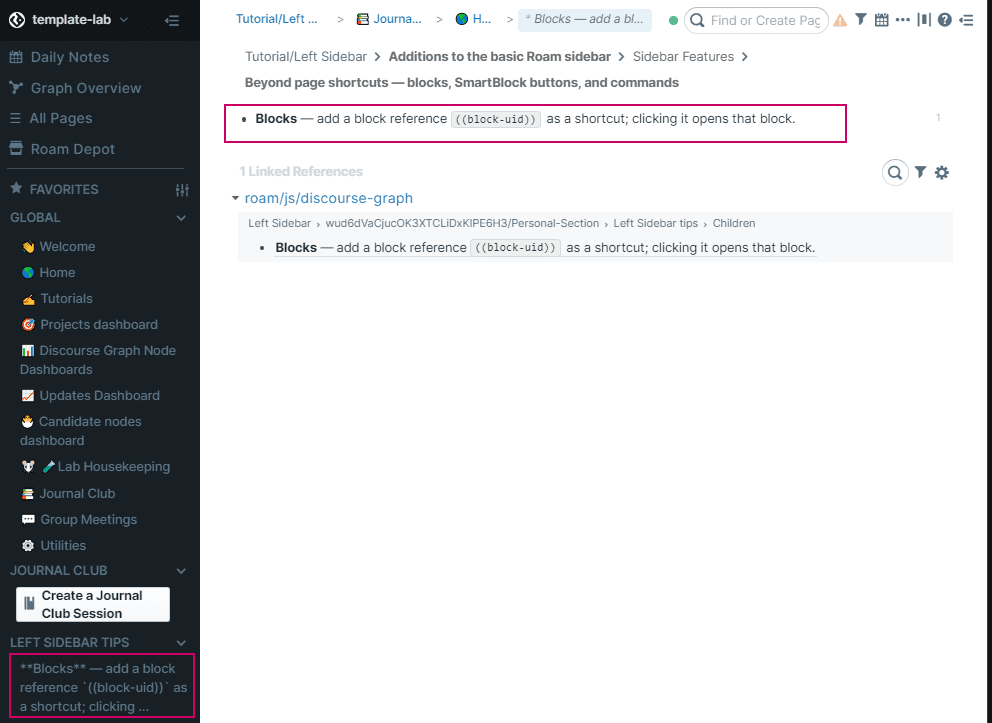 Clicking on the left sidebar block shortcut navigates to that block
SmartBlock buttons
SmartBlock buttons added to the left sidebar will render and run directly in the sidebar.
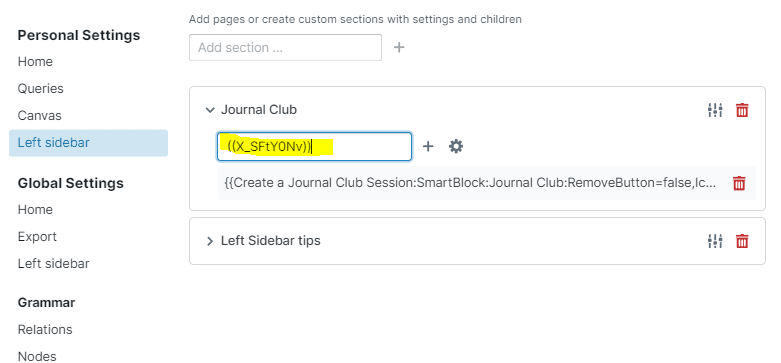 Here we added a link to the
 Create Journal Club Session button as a child of a personal “Journal Club” shortcut
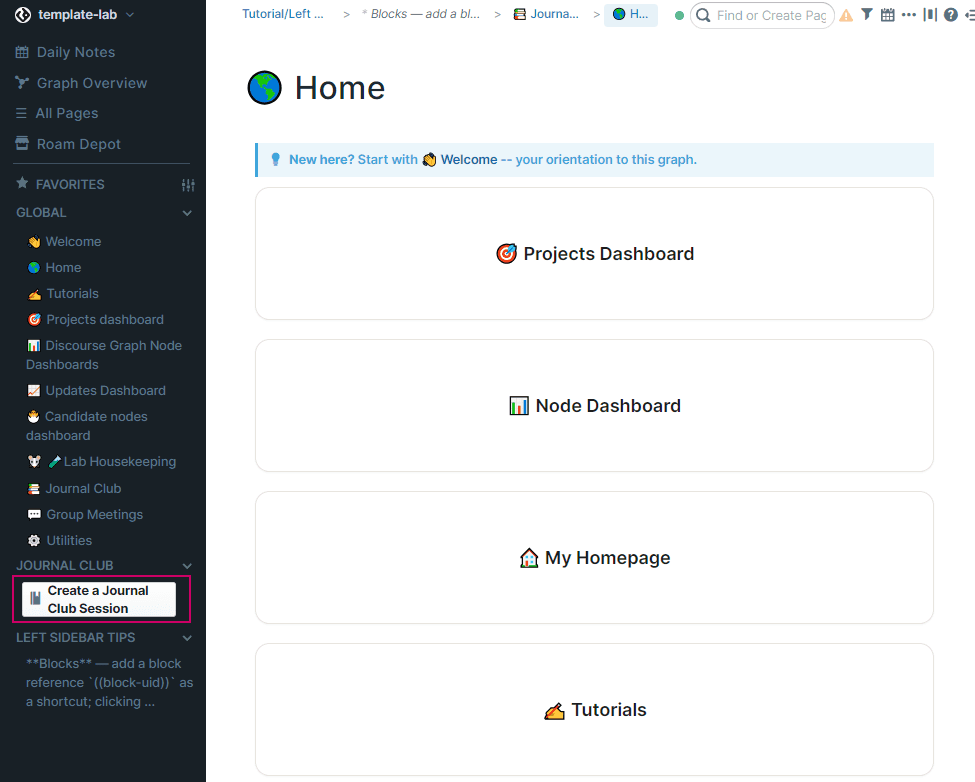 Clicking on the
 Create Journal Club Session SmartBlock button will open the Journal Club modal
Commands
Use the ⚙️ / cog popover in the Global or Personal settings menu to add a built-in command, which will appear in the sidebar as a button.
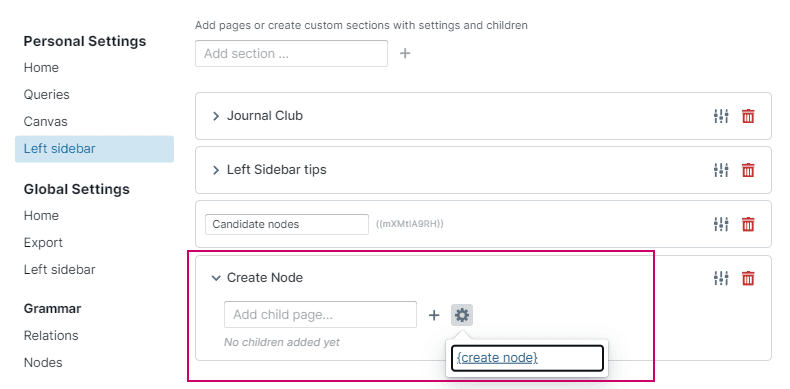 Here we are adding the
 create node command, which opens the discourse node creation flow
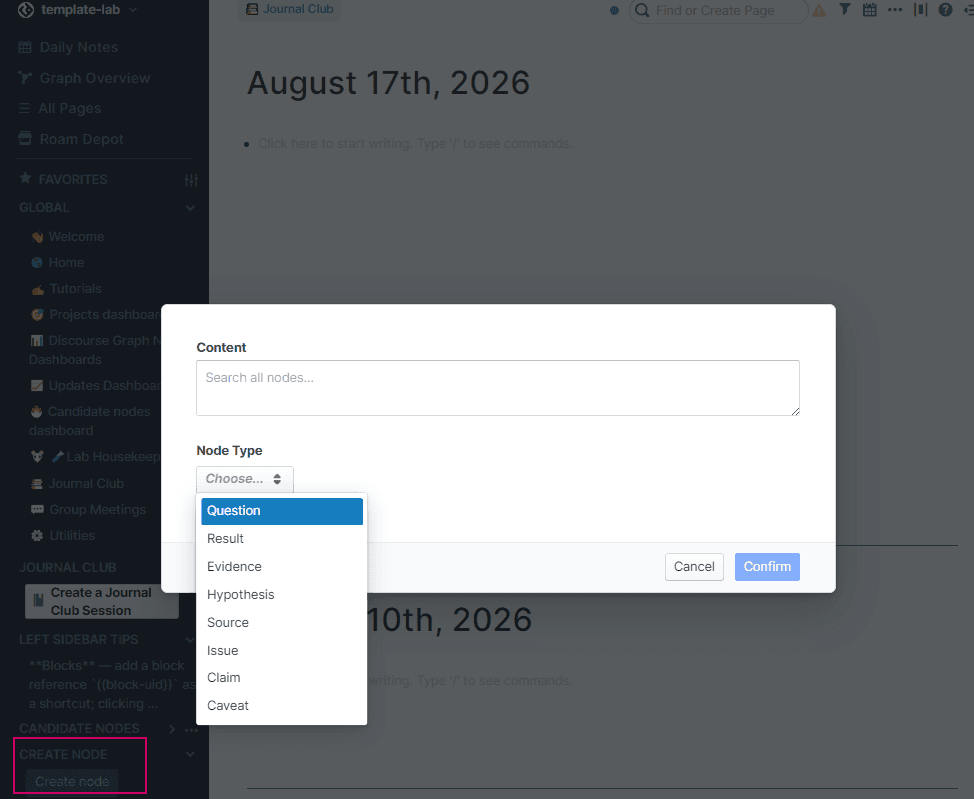 Clicking on the button (dimmed in the sidebar) opens the node creation modal
Navigation tips: Click a shortcut to open it in the main window. Shift + click to open it in the right sidebar instead. Shortcuts are tracked by page
id, so renaming a page doesn’t affect shortcut function — the label updates
automatically.
Using the section settings
Click the Settings icon next to any item to set an Alias — a custom label shown in place of the page/block title (the real title appears in grey beside it in Settings).
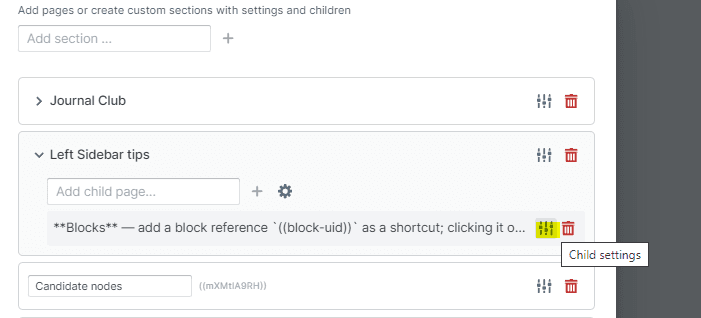 The Settings icon
You can also use the Settings menu to rename the section, select the number of characters to display for each item (max 75), and select the maximum number of children to display.
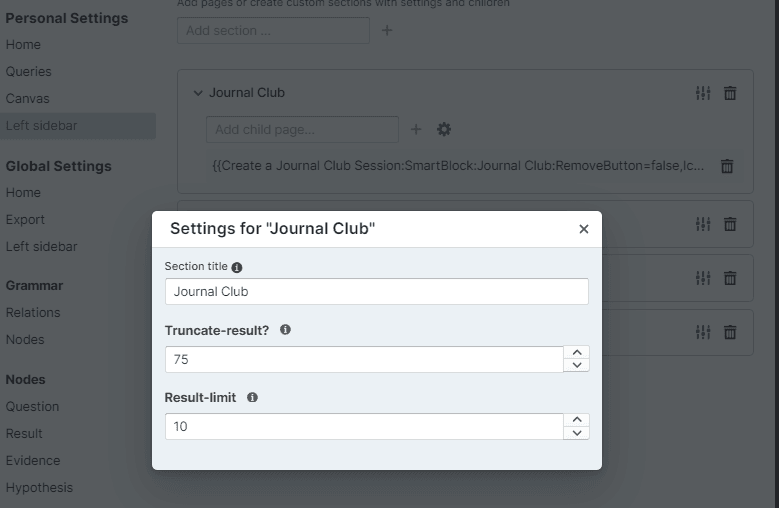 Additional Settings
Rearranging shortcuts
You can now use drag-and-drop actions to reorder sections, child pages, and Global items by dragging them — both in the sidebar itself and in the settings panels.
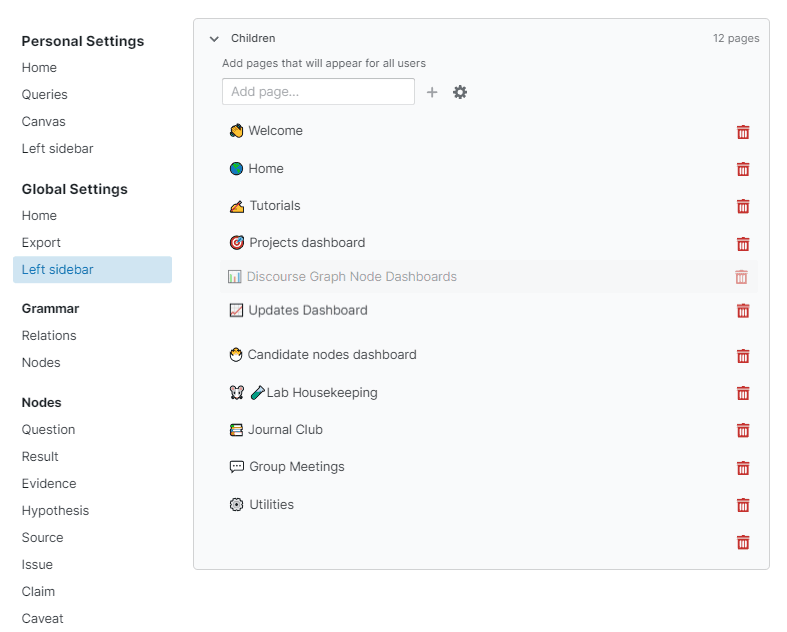 Rearrange your shortcuts using drag-and-drop