Track your Projects and Experiments
This guide makes reference to templates available in an example vault that you can find here
How to use Projects
The Project acts as a container for multiple activities exploring a particular research question. You can think of it as a conceptual framework to structure a set of Discourse nodes related to a certain research goal.
Use Project pages to
- Prioritize experiments
- Stay oriented toward and reflect on your progress toward your project target/question
- Keep relevant resources at hand (links, etc)
The Project structure facilitates the creation of a traditional research narrative and aids in keeping track of all the moving parts that go into a scientific ms.
Examples
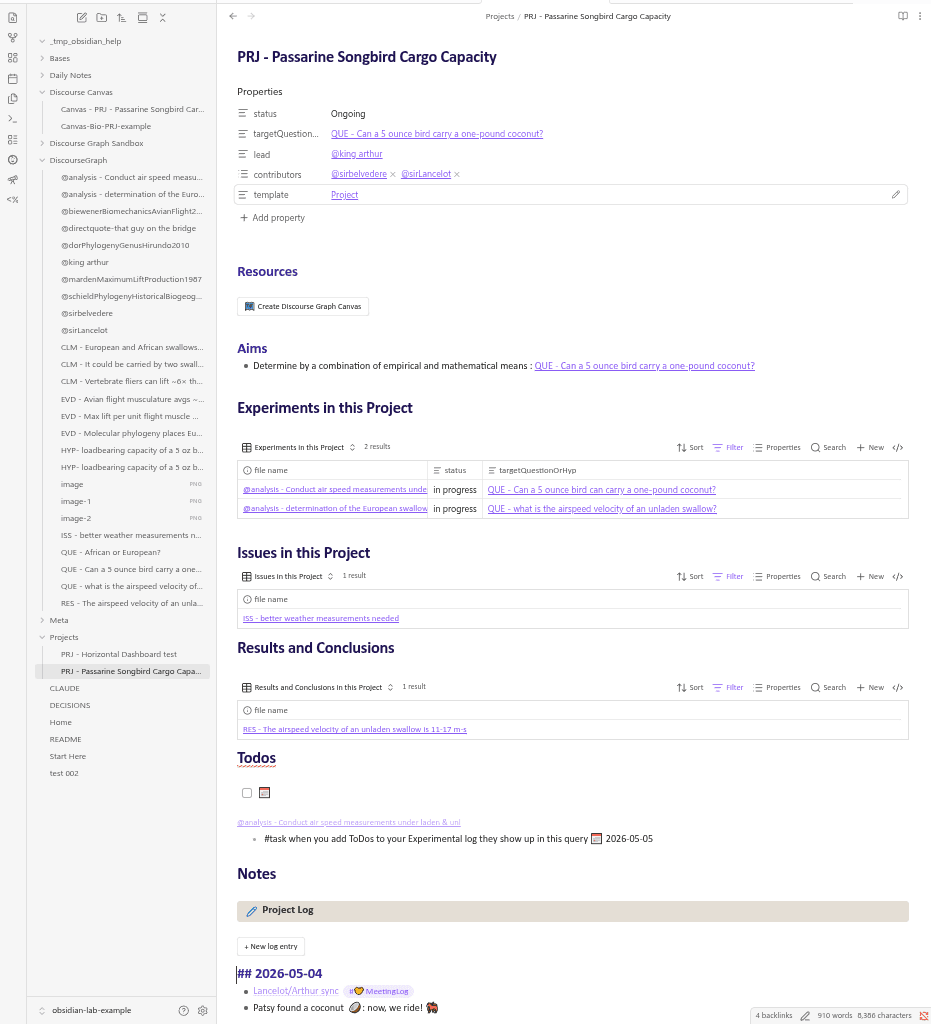
The discourse graph example vault contains an example project page, PRJ - Passarine Songbird Cargo Capacity, that demonstrates a project structure appropriate to experimental research.
-
The Resources section can be used to organize protocols, references, datasets, reagent lists, etc. It’s also a convenient spot to pre-register your working Hypothesis
-
The Create Discourse Graph Canvas button will automatically spin up a discourse canvas named after the project for visual organization of your ideas.
-
The Experiments, Issues, & Results Bases can be used to keep track of multiple active experiments and filter by status, observations made from those experiments (Results), and ideas for future experiments (Issues).
-
The ToDo list collects tasks tagged
PRJ - Passarine Songbird Cargo Capacity -
The Project Log can be used to keep track of project updates and link project-relevant information from other parts of your graph. Like your Daily Notes Page, it has a button function for regular entries.
-
the Project Meeting Notes log will collect references to this project made in meeting notes throughout this graph.
How to Create a Project
Create a new project by
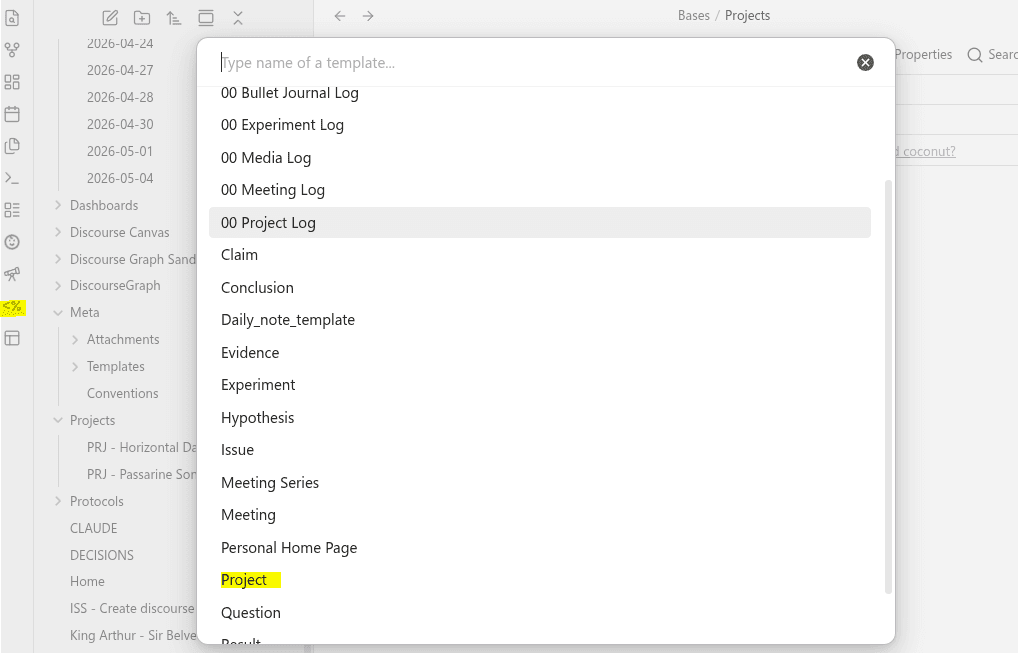
- Creating a new note in the “Projects” Folder and applying the Project Template from the Templater menu in the left sidebar
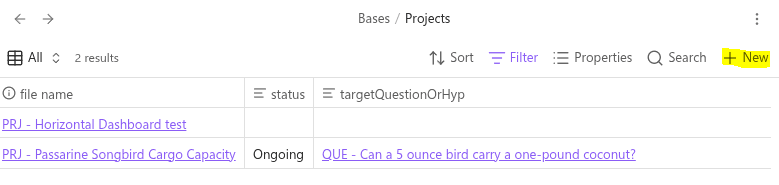
- Navigating to your “Projects” base in the “Bases” folder and selecting ”+ New”
The relationship between your Projects and your Discourse Graph
In the example vault, the Project is not treated as a discourse node but rather an organizational background for other nodes. You can see how this works in the Canvas - PRJ - Passarine Songbird Cargo Capacity: the Project contains 3 Questions:
- the original motivating question:
QUE - Can a 5 ounce bird carry a one-pound coconut? - a question that arose during the course of the initial investigation:
QUE - what is the airspeed velocity of an unladen swallow? - and a sub-question informing that second question:
QUE - African or European?
These three Questions are all part of the same work package, and while their respective edges may eventually meet, we’re not going to force it.
The relationship between your Projects and your Experiments
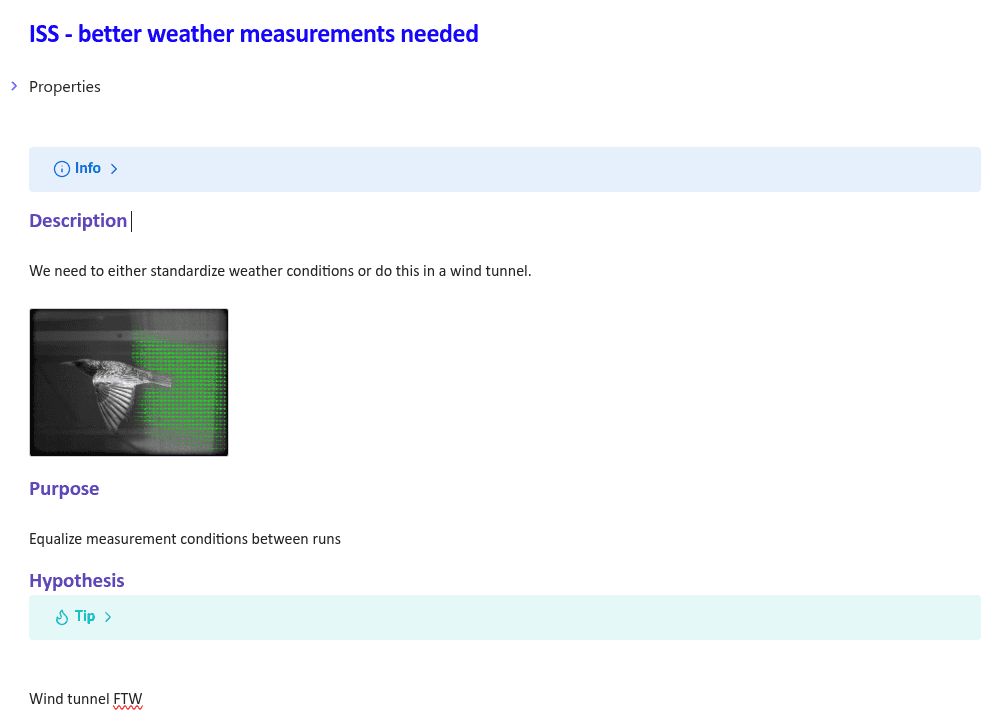
The Project is also the natural container for the Experiment node, which is a flavor of the Source node for laboratory work. Your Project will probably contain several experiments — you can see from the Experiments.base that each Experiment is associated with a Project via its frontmatter for easier queryability.
How to use Experiments
The Experiment is a container for your day-to-day work exploring a Hypothesis. It consists of an intervention and a metric used to track the result of that intervention. The Result is a statement of your observations regarding that intervention in terms of the appropriate metric.
Making an experiment page helps you track multiple days’ work and reflect on your progress towards your experiment target. Ideally the target is a Hypothesis you are testing, and the experiment page is a space to document and reflect on candidate results for that hypothesis.
A quick word on candidate nodes
Candidate Results are preliminary observations attached to a particular experiment. They might be first impressions formed from a certain data artefact. Use this tag to mark candidate results: #res-candidate
Candidate Issues surface potential problems or future experiments. Use this tag to mark candidate issues: #iss-candidate
When you’re more confident in the observation, you can use the “Create Discourse Node” popup to convert the candidate result into a proper Result. This will affect where the Result appears in queries and its appearance on your Project Canvas. It will also give you a warm sense of accomplishment (this can be done to mature all candidate node types).
Creating experiments
You can create a new experiment by
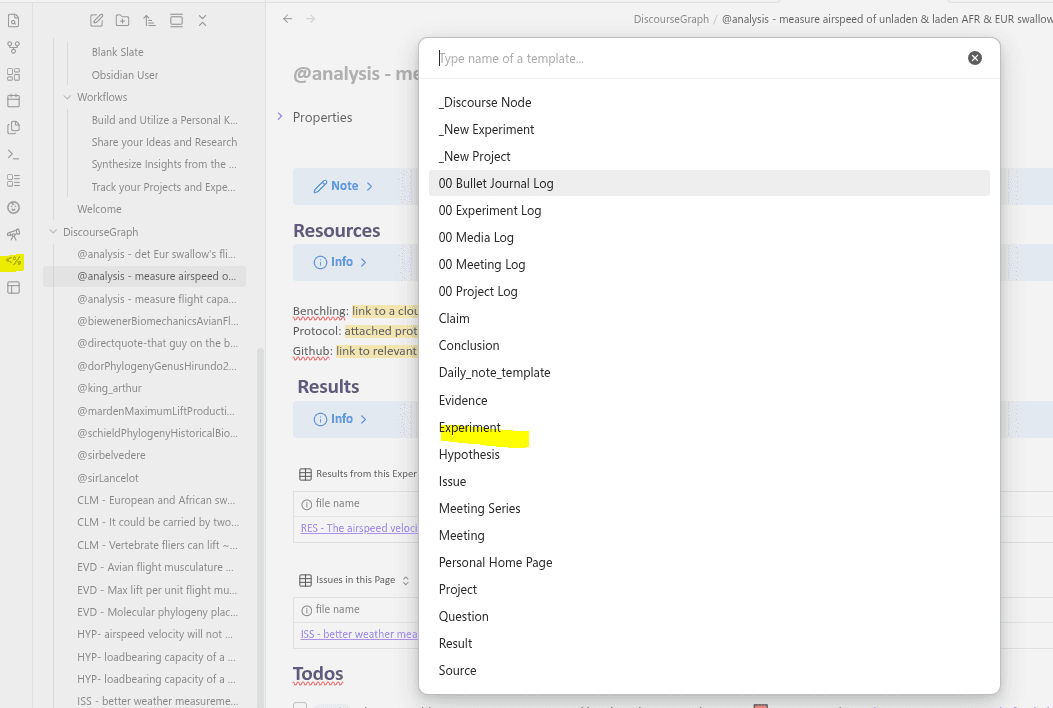
- Creating a new note and applying the Experiment Template from the Templater menu in the left sidebar
- Navigating to your “Experiments” base in the “Bases” folder and selecting ”+ New”

- Using any of the methods to create nodes (Remember, an Experiment is a type of Source)
Experiment relations
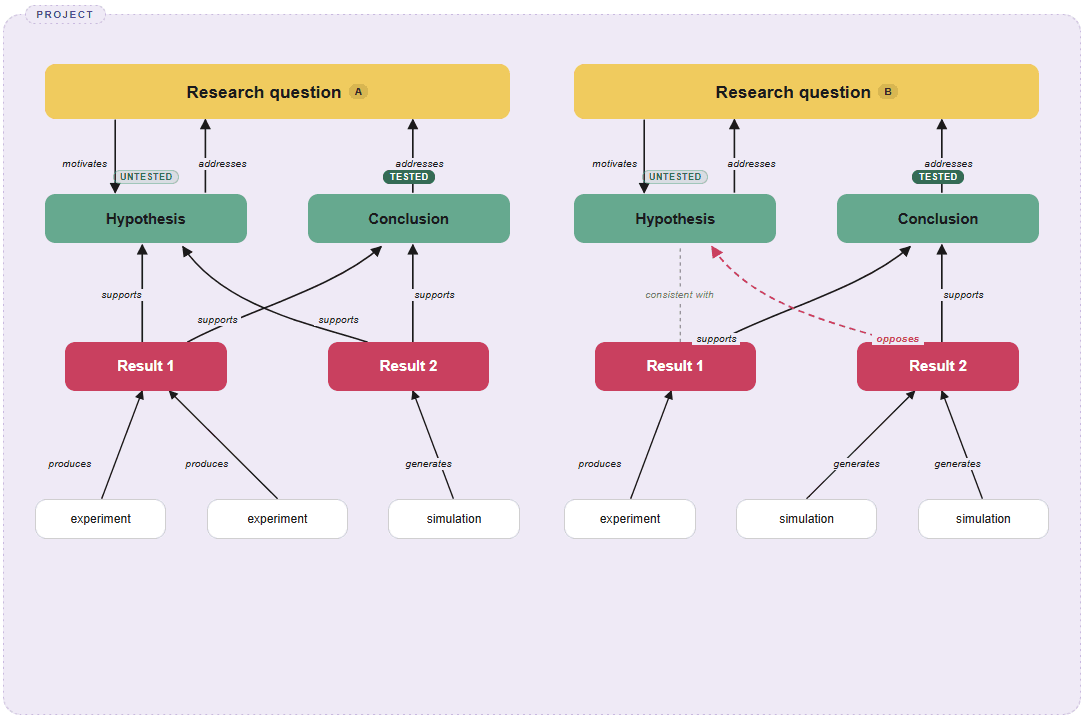
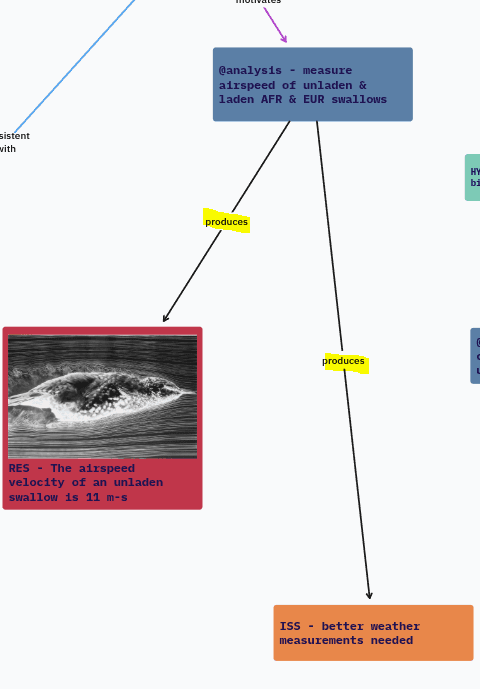
As a Source node, the Experiment has a special relationship to Result nodes: the Experiment produces Results.
Conversely, each Result in your graph should reference an Experiment.
The Experiment also has a relationship with the Issue node, as Experiments suggest/produce Issues that may later be developed into Experiments.
Transforming an Issue into an Experiment
If you decide an Issue captures something worth doing, you can easily change it into an Experiment: the Issue template is identical to the Experiment template, so you can either duplicate the node and change the name and metadata to use your preferred EXP syntax (e.g. “@measurement -”) or simply edit the title of the Issue in place.